
Import PowerSchool Test Scores
Import Test Scores using any of the following methods:
-
Quick Import
-
Import Test Scores Data File
Assumption
-
An ERS test has been created and assigned to students
-
(ERS) is part of the test name
-
An Outcome score is created for the test
Import using Quick Import
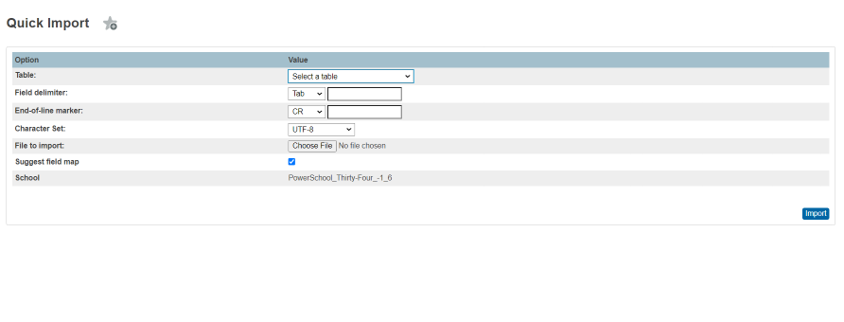
Use this option only when importing test results for a single school at the School level. Do not use this option from the District Office.
-
Select the school for which you want to import test results.
-
Navigate to the Quick Import page. (Data and Reporting, Imports, then Quick Import)
-
Choose the ‘Test Results’ table.
-
Choose the field delimiter.
-
Choose the End-of-line marker.
-
Select the file to import by clicking Choose File button.
-
Select “Suggest field map” to have the system map the file fields to PS table fields.
-
Click Import.
-
Choose The Early Reading Screening from the Test Name menu.
-
Click Submit.
-
Choose the PowerSchool field into which you want to enter each value from the To PowerSchool menu.
-
Click Submit. The Import Progress page shows the records that were successfully imported and highlights any that failed due to specification errors. The system will import the data into the studenttest and studenttestscore tables.
Template File Creation for Quick Import page
Create a tab-delimited text file with 4 columns as follows. Use the same column names suggested in the table below to map automatically to the table fields.
Date Format: MM-DD-YYYY
Alpha Score Valid Values: 1, 2, NC, NA . for definition of what these values mean please refer to the ERS – User Guide found here Early-Reading-Screening-Setup-and-Data-Entry. You may need to login to Customer Central (PowerSchool Community) to access this link.
|
Student_Number |
Date |
Grade_Level |
Alpha |
|
200837 |
11-30-2023 |
1 |
1 |
Import using Import Test Scores Data File page
This import method can be used at the District level for one or more schools simultaneously, or at the School level for a single school.
-
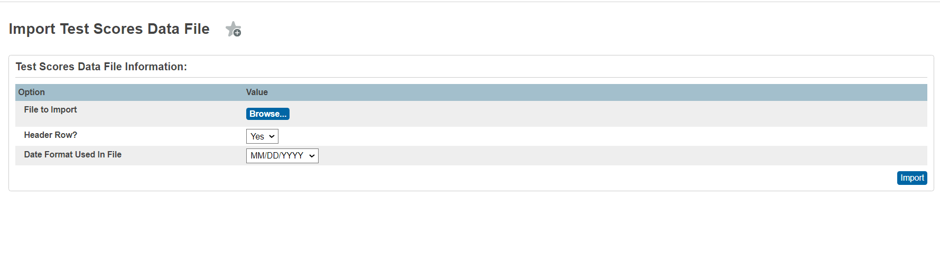
Navigate to the Import Test Scores Data File page. (Data and Reporting > Imports > Student Test Scores Import-ON)
-
Choose the Header Row? Yes/no.
-
Choose the Date Format Used in File Field.
-
Click Import. A link to the Student Test Results page will be displayed. The Student Test Scores Import Results page shows the records that were successfully imported and highlights any that failed due to specification errors. The system will import the data into the studenttest and studenttestscore tables.
Template File Creation for Import Test Scores Data File page
-
Create a tab-delimited text file, in the following order:.
-
The values imported correspond to the following fields within PowerSchool:
-
STUDENT_NUMBER*
-
·
|
Import Value |
PowerSchool Database Field |
Constraints |
|
STUDENT_NUMBER |
[Students]Student_Number |
Matching value must exist for import of record to occur. |
|
SCHOOL_NUMBER |
[Schools]Alternate_School_Number or [Schools]School_Number if [Schools]Alternate_School_Number is 0 |
Matching value (or blank) must exist for import of record to occur. Must exist if TERM_CODE is specified. |
|
TERM_CODE |
[Terms]ID |
Matching value (or blank) must exist for import of record to occur. |
|
GRADE_LEVEL |
[StudentTest]Grade_Level |
If SCHOOL_NUMBER is specified, this value must be between [Schools]Low_Grade and [Schools]High_Grade for import of record to occur. |
|
TEST_NAME |
[Test]Name |
Matching value must exist for import of record to occur. |
|
TEST_DATE |
[StudentTest]Test_Date |
Must be a valid date and must be formatted as specified at import run time. It TERM_CODE is specified, must exist within term. |
|
SCORE_NAME |
[TestScore]Name |
Matching value must exist for import of record to occur. Must also have corresponding [TestScore]TestID as matches imported TEST_NAME. |
|
ALPHA_SCORE |
[StudentTestScore]ALPHASCORE |
If matching [StudentTestScore] record exists, this value will be Updated Valid values are 1, 2, NC, NA. For understanding what these values mean please refer to the ERS – User Guide found here Early-Reading-Screening-Setup-and-Data-Entry. You may need to log in to PS community to access this link. |
Sample file:
student_number School_number Term_code Grade_level Test_name Test_date Score_name Alpha_Score
200837 200 3300 1 Early Reading Screening (ERS) 12/15/2023 Outcome 1
20181014 999999 3300 10 Early Reading Screening (ERS) 12/12/2023 Outcome NC
Important Notes:
-
Verify whether the data you are importing is accurate.
-
School_number = Alternate School number if defined. Otherwise, the school number when run from the district office.
-
The accurate test name must be used.
-
Accurate test date format must be selected when importing.
-
Verify whether the term, test date and school are accurate.
-
No extra spaces exist at the end of the template. Extra spaces will cause the import to fail.