PowerSchool SIS Manitoba

Import Early Reading Screening Test Scores

Import Early Reading Screening (ERS) test scores into PowerSchool using either of the following methods:

  • Quick Import: Use this method to import test results for a single school at the School level.

  • Import Test Scores Data File: Use this method to import test results for one or more schools at the District level, or for a single school at the School level.

Prerequisites

  • An Early Reading Screening (ERS) test has been created and assigned to students.

  • The test name contains (ERS).

  • An Outcome score has been defined for the test.

Quick Import

Prepare the Quick Import File

Create a tab-delimited text file with the four columns listed below. Use the exact column header names so PowerSchool maps them automatically to the table fields.

Date Format: MM-DD-YYYY

Alpha Score Valid Values:

  • 1: Completed and Met the Benchmark

  • 2: Completed and Did Not Meet the Benchmark

  • N/A: Student is Exempt

Other values may be imported, but they will map to “Did Not Complete Screening” on the report card.

Student_Number

Date

Grade_Level

Alpha

200837

11-30-2023

1

1

Import Using Quick Import

Use this option only when importing test results for a single school at the School level. Do not use this option from the District Office.

  1. Select the school for which you want to import test results.

  2. Navigate to Data and Reporting > Imports > Quick Import.

  3. From the Table menu, select Test Results.

  4. Select the appropriate Field delimiter.

  5. Select the appropriate End-of-line marker.
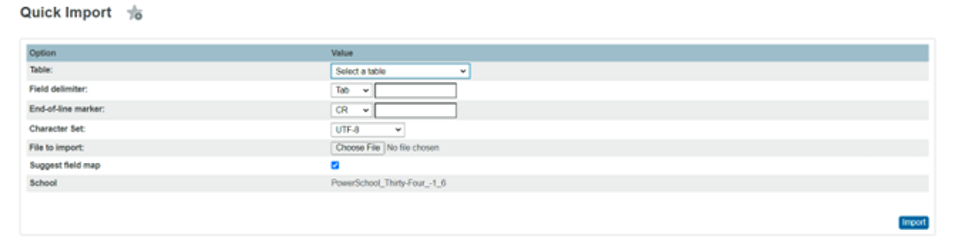
QuickImport1.png
  1. Click Choose File, and then select your prepared import file.

  2. Select Suggest field map to have PowerSchool map the file fields to the PowerSchool table fields.

  3. Click Import.

  4. From the Test Name menu, select Early Reading Screening.

  5. Click Submit.

  6. On the field mapping screen, verify that each import field correctly maps to its corresponding PowerSchool field in the To PowerSchool column.

  7. Click Submit.

  8. Review the Import Progress page to verify successful records and resolve any specification errors. Data is imported into the studenttest and studenttestscore tables.

Import Test Scores Data File

Prepare the Import Test Scores Data File

Create a tab-delimited text file with the fields in the exact order listed below.

The imported values correspond to the following fields in PowerSchool:

Import Value

PowerSchool Database Field

Constraints

STUDENT_NUMBER

[Students]Student_Number

Required. A matching student record must exist for the import to occur.

SCHOOL_NUMBER

[Schools]Alternate_School_Number or [Schools]School_Number if [Schools]Alternate_School_Number is 0

A matching value, or a blank value, must exist for the import to occur. Required if TERM_CODE is specified.

TERM_CODE

[Terms]ID

A matching value, or a blank value, must exist for the import to occur.

GRADE_LEVEL

[StudentTest]Grade_Level

If SCHOOL_NUMBER is specified, this value must be between [Schools]Low_Grade and [Schools]High_Grade for the import to occur.

TEST_NAME

[Test]Name

Required. A matching test name must exist in PowerSchool.

TEST_DATE

[StudentTest]Test_Date

Must be a valid date matching the format selected during import. If TERM_CODE is specified, the date must fall within the term date range.

SCORE_NAME

[TestScore]Name

Required. A matching score name must exist and correspond to the [TestScore]TestID associated with TEST_NAME.

ALPHA_SCORE

[StudentTestScore]ALPHASCORE

Valid values are 1, 2, and N/A. If a matching [StudentTestScore] record exists, this value will be updated.

Import Using Import Test Scores Data File

This import method can be used at the District level for one or more schools simultaneously, or at the School level for a single school.

  1. Navigate to Data and Reporting > Imports > Student Test Scores Import-ON.

  2. In the Header Row? field, select Yes if your file contains headers, or select No if it does not.

DatafileImprt1.png
  1. In the Date Format Used in File field, select the format that matches your import file.

  2. Click Choose File, select your prepared import file, and then click Import.

  3. Click the link to open the Student Test Scores Import Results page.

  4. Review the imported records and resolve any specification errors. Data is imported into the studenttest and studenttestscore tables.

Sample file:

student_number

School_number

Term_code

Grade_level

Test_name

Test_date

Score_name

Alpha_Score

200837

200

3300

1

Early Reading Screening (ERS)

10/15/2026

Outcome

1

20181014

999999

3300

10

Early Reading Screening (ERS)

01/12/2023

Outcome

2

Important Notes:

  • Verify that the import data is accurate before importing.

  • When importing from the District Office, use the Alternate School Number if defined; otherwise, use the School Number.

  • Use the exact test name configured in PowerSchool.

  • Select the date format that matches the import file.

  • Verify that the term, test date, and school are accurate.

  • Ensure there are no extra spaces or trailing delimiters at the end of the template. Extra spaces can cause the import to fail.