
Overview
Ed‑Fi Gen 7 Self‑Service Configuration allows districts to manage key Ed‑Fi publishing settings directly from the application without submitting support tickets or modifying configuration files.
This feature replaces earlier XML‑based or support‑led configuration processes and is designed to reduce setup time, operational costs, and dependency on deployment teams.
The feature is available on State reporting 26.8.2.0 and above versions and applies only to Ed‑Fi Gen 7 profiles.
Note: Note: This configuration is optional. Customers using the latest Ed‑Fi versions are not required to configure anything, while customers who want a basic, lightweight Ed‑Fi implementation may choose to use it. If you do not open or modify the configuration, the default values remain active and publishing continues as usual.
This feature is intended for:
-
District administrators
-
Data administrators
-
IT administrators
-
Customers who want a ready‑to‑use Ed‑Fi setup
It is especially useful for customers who:
-
Want to publish Ed‑Fi data quickly
-
Do not require advanced, state‑specific rules
-
Prefer UI‑based configuration over file changes
What the Self‑Service Configuration Does
You can use the Gen 7 configuration UI to:
-
Choose identifiers for:
-
Students
-
Staff
-
Schools
-
-
Control visibility of specific UI pages (for example, staff‑related pages)
-
Configure technical options such as:
-
Including or excluding School Year in URLs
-
-
Replace settings previously configured through:
-
XML files
-
Support
-
Note: Note: Using the self‑service configuration does not change how data is published to the state. It does not alter Ed‑Fi JSON payloads, impact dashboards or submission workflows, or apply any state‑specific rules or validations. The overall publishing process remains unchanged; the selected configuration options are used only to determine how backend queries retrieve data.
How to Access the Configuration
-
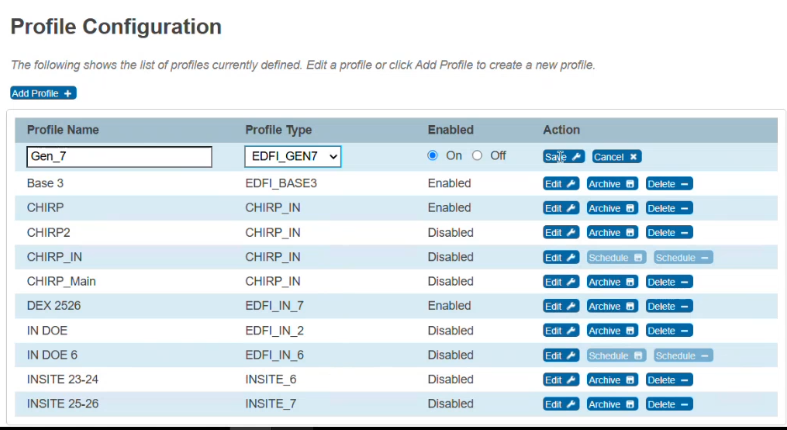
Go to System Management
-
Open Profile Configuration
-
Enable or select a Gen 7 profile
-
Save the profile
-
Click Configure to open the self‑service dialog
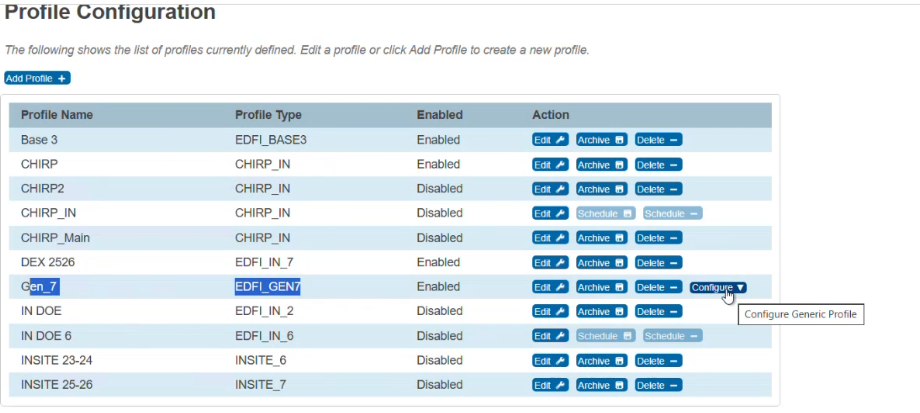
Note: Note: The Configure option appears only for Gen 7 profiles.
Identifier Selection
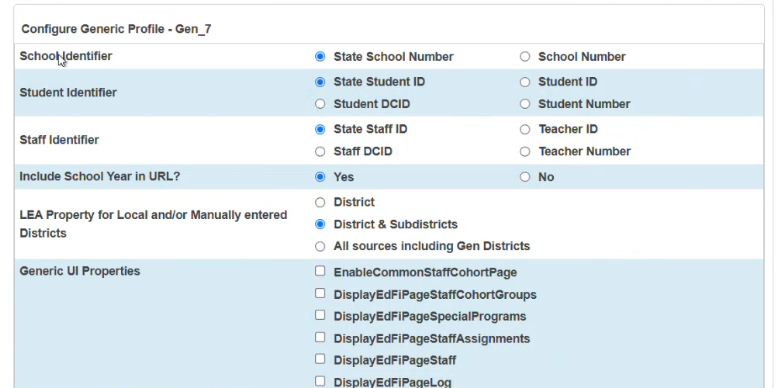
You can select which identifiers to use for:
-
Students (for example, State Student ID or Local Student ID)
-
Staff (for example, State Staff ID or Teacher ID)
-
Schools (for example, State School Number)
Important Restrictions
-
Note: The School Identifier cannot be changed after saving
-
This restriction prevents downstream data and publishing issues
-
All other identifiers can be updated later if needed
Default Identifier Configuration
The identifier configuration includes default selections. Click Save and Submit to keep the default options.
|
Category |
Setting |
Options |
Default selection |
Notes |
|---|---|---|---|---|
|
School Identifier |
Identifier used for schools |
State School Number
|
State School Number |
Once selected and submitted, this setting is disabled and cannot be edited |
|
Student Identifier |
Identifier used for students |
State Student ID
|
State Student ID |
Can be changed later |
|
Staff Identifier |
Identifier used for staff |
State Staff ID
|
State Staff ID |
Can be changed later |
|
Swagger URL |
Include School Year in Swagger URL |
Yes
|
Yes |
Controls whether the School Year is appended to the URL |
|
School Year Placement |
Place School Year at Beginning of URL |
Yes
|
Yes |
Controls whether the school year is appended in the beginning of the URL aligning with Ed-Fi v7+ |
|
LEA Property |
LEA source for local or manually entered districts |
District
|
District & Subdistricts |
Applies only to local or manually entered districts |
|
Generic UI Properties |
UI page visibility controls |
EnableCommonStaffCohortPage
|
All unchecked |
Displayed as checkboxes; unchecked by default |
Page Visibility Settings
You can control whether certain pages appear in the application.
Examples:
-
Staff Assignment pages
-
State‑specific or district‑specific pages
Previously, these settings required XML changes or support involvement. With Gen 7, you can:
-
Select or clear Display options and Save the configuration
URL update
Note: Some districts require technical adjustments to how data is sent, such as:
-
Including the School Year in URLs
-
Excluding School Year from URLs
Configure this with Yes/No options. No files or support needed.
Saving and Applying Changes
After you save the configuration:
-
Settings apply immediately
-
Backend queries dynamically adjust to your selections
-
Published Ed‑Fi data remains unchanged in structure and format
-
No redeployment or downtime is required
Best Practices
-
Use default settings unless you have a specific requirement
-
Choose the School Identifier carefully, as it cannot be changed later
-
Save and review settings before initial publishing.
Note: Complete the Initial Data Exchange Setup to finish setting up your profile.
Note: Once the initial set-up is complete, follow Publish Guidelines to send your data to the district/state ODS.